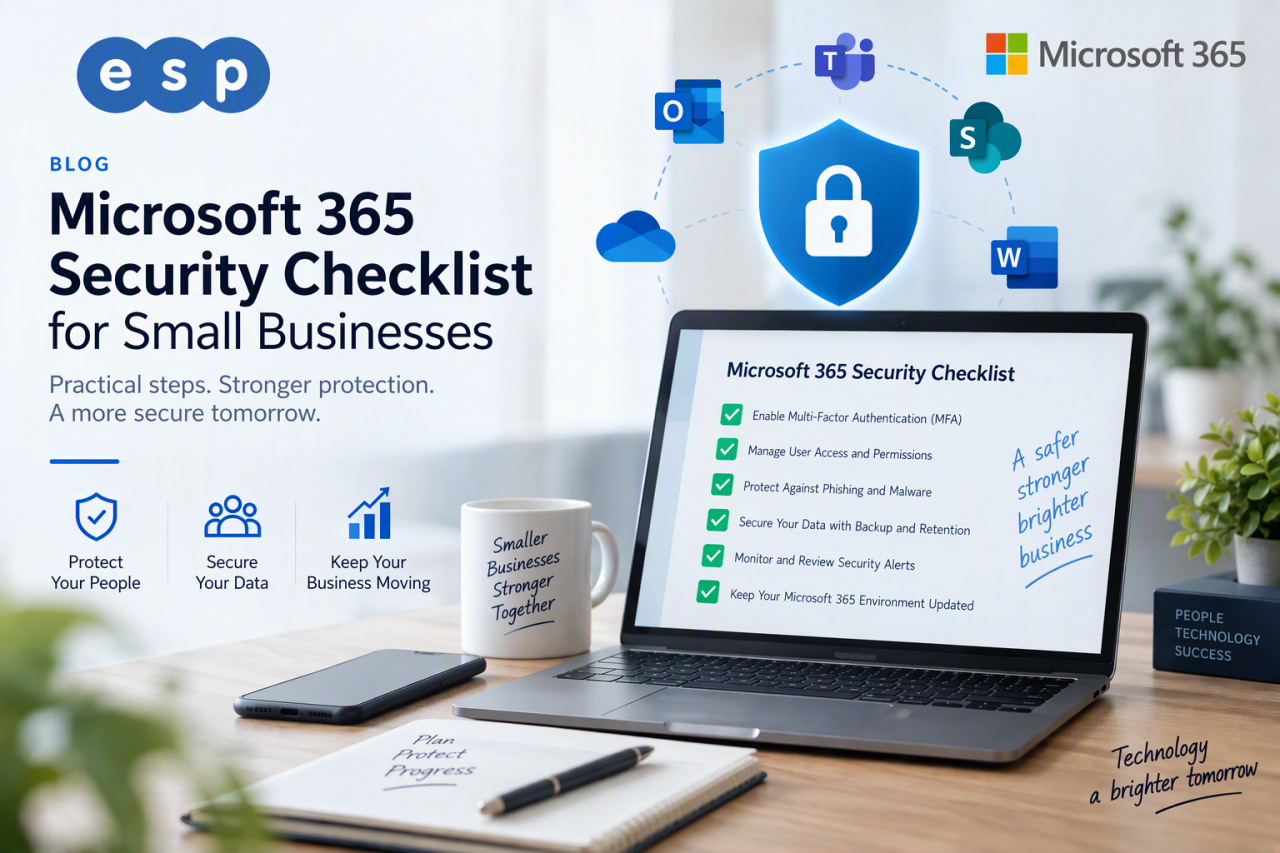
If you do one thing today, make sure multi-factor authentication (MFA) is enabled for every Microsoft 365 account, starting with administrators. Microsoft reports that more than 99.9% of compromised accounts it has observed did not use MFA, which shows how much protection an extra verification step can provide.
That is the first priority, but it is not the whole security plan. Microsoft 365 stores email, documents, identities, shared files and often some of the most commercially sensitive information in a small business. Protecting it means securing identities, devices, email, data and backups together rather than relying on one setting.
This Microsoft 365 security checklist is designed for UK small business owners and IT managers who want practical actions, clear priorities and fewer security gaps.
Start With the Highest-Priority Microsoft 365 Security Actions
If time is limited, concentrate on the controls that reduce the most common risks first. Your initial priorities should be MFA, administrator security, supported devices, endpoint protection, email authentication and reliable backup.
Businesses using Microsoft 365 services should also review which licence is assigned to each user. Security capabilities differ significantly between Business Basic, Business Standard and Business Premium, so your security plan must reflect the licences you actually have.
1. Check Microsoft Secure Score
Before changing settings at random, establish a baseline. Microsoft Secure Score measures your security posture and provides recommended actions across Microsoft identities, applications and devices.
Use Secure Score as a prioritisation tool rather than treating the percentage as a target in isolation. Review the recommended actions, identify the controls relevant to your licences and business risks, then record which improvements you will implement, defer or manage another way.
A practical Secure Score routine
- Review your current score and recommendations.
- Prioritise high-impact identity, device and email actions.
- Assign each action to a named owner.
- Recheck the score after important changes.
- Review it again during quarterly security meetings.
2. Enable MFA for Every User
MFA makes a stolen password much less useful because an attacker also needs a second form of verification. Microsoft 365 business subscriptions include security defaults, which provide baseline MFA protection, while Business Premium adds Microsoft Entra ID Plan 1 and more granular Conditional Access controls.
Start with administrator accounts, then extend MFA to everyone. Avoid leaving finance, directors or occasional users outside the policy simply because they find the extra step inconvenient; those accounts often have access to valuable data.
Make MFA harder to bypass
- Use Microsoft Authenticator or another strong approved method.
- Keep emergency recovery procedures documented.
- Review registered authentication methods when employees leave.
- Separate administrator accounts from normal email and web browsing.
If MFA is not consistently enforced across your organisation, ESP Projects’ Cyber Essentials support can help identify wider identity and access-control gaps too.
3. Use Conditional Access Where Your Licence Supports It
Conditional Access allows Microsoft 365 to make access decisions based on signals such as the user, device, location and application. Microsoft confirms that Conditional Access is available to Microsoft 365 Business Premium customers through Microsoft Entra ID Plan 1.
For many SMEs, sensible starting policies include requiring MFA for privileged roles, blocking legacy authentication, requiring compliant devices for sensitive applications and restricting risky sign-in scenarios. Test policies with a small group before broad enforcement so you do not accidentally lock out legitimate users.
If you are deciding whether the extra security controls justify an upgrade, our guide to Microsoft 365 Business Premium vs Standard explains the practical differences.
4. Protect Devices With Intune and Defender
A secure Microsoft 365 account can still be exposed by an unmanaged or compromised laptop. Microsoft 365 Business Premium includes Intune Plan 1 for device management and Microsoft Defender for Business for endpoint protection.
Microsoft describes Defender for Business as an endpoint security solution for organisations with up to 300 users, providing protection against threats such as ransomware, malware and phishing. It also supports endpoint detection and response, helping organisations investigate suspicious activity rather than relying only on traditional antivirus.
Your device security checklist
- Inventory every business device accessing Microsoft 365.
- Enrol corporate devices into Intune where appropriate.
- Require supported operating systems and current security updates.
- Enable disk encryption on laptops.
- Deploy endpoint protection consistently.
- Remove or isolate devices that are no longer compliant.
For a deeper explanation of this layer, see our guide to endpoint protection for businesses.
5. Strengthen Microsoft 365 Email Security
Email remains one of the most common routes into a business. Microsoft recommends using SPF, DKIM and DMARC together because each performs a different part of email authentication. Its official Microsoft 365 email authentication guidance explains how the three standards work together to reduce spoofing and phishing risk.
Review these email controls
- Publish an accurate SPF record for authorised sending services.
- Enable DKIM signing for your Microsoft 365 domains.
- Implement DMARC and monitor reports before moving to stricter enforcement.
- Review mailbox forwarding rules and external auto-forwarding.
- Use anti-phishing policies and impersonation protection where licensed.
- Configure Safe Links and Safe Attachments when Defender for Office 365 Plan 1 is available.
ESP Projects also has a practical guide explaining how DNS records help email deliverability and authentication.
6. Protect Administrator Accounts
Administrator accounts can change security settings, access data and create new users, so they deserve stronger controls than ordinary accounts. Keep the number of Global Administrators as low as practical and give administrators separate accounts for privileged work.
Review privileged-role assignments at least quarterly and immediately after staff or supplier changes. Avoid using a Global Administrator account for routine email, web browsing or day-to-day Office work.
7. Back Up Microsoft 365 Data
Retention and recycling features are useful, but they should not be confused with a complete recovery strategy. Microsoft now offers Microsoft 365 Backup for Exchange, OneDrive and SharePoint, and businesses can also use reputable third-party backup platforms. The right option depends on your recovery requirements, retention needs and wider continuity plan.
Microsoft’s cloud guidance makes clear that customers remain responsible for their data, identities and configuration. Whatever backup method you choose, test recovery rather than assuming a successful backup status means the business can restore what it needs.
Your backup checklist
- Define which Microsoft 365 data must be protected.
- Set recovery expectations for Exchange, OneDrive and SharePoint.
- Protect backup administrator accounts with MFA.
- Test restores regularly.
- Document who can authorise and perform a recovery.
ESP Projects provides cloud backup services for businesses that need an additional layer of resilience and a clearer recovery process.
8. Train Employees to Recognise Microsoft 365 Threats
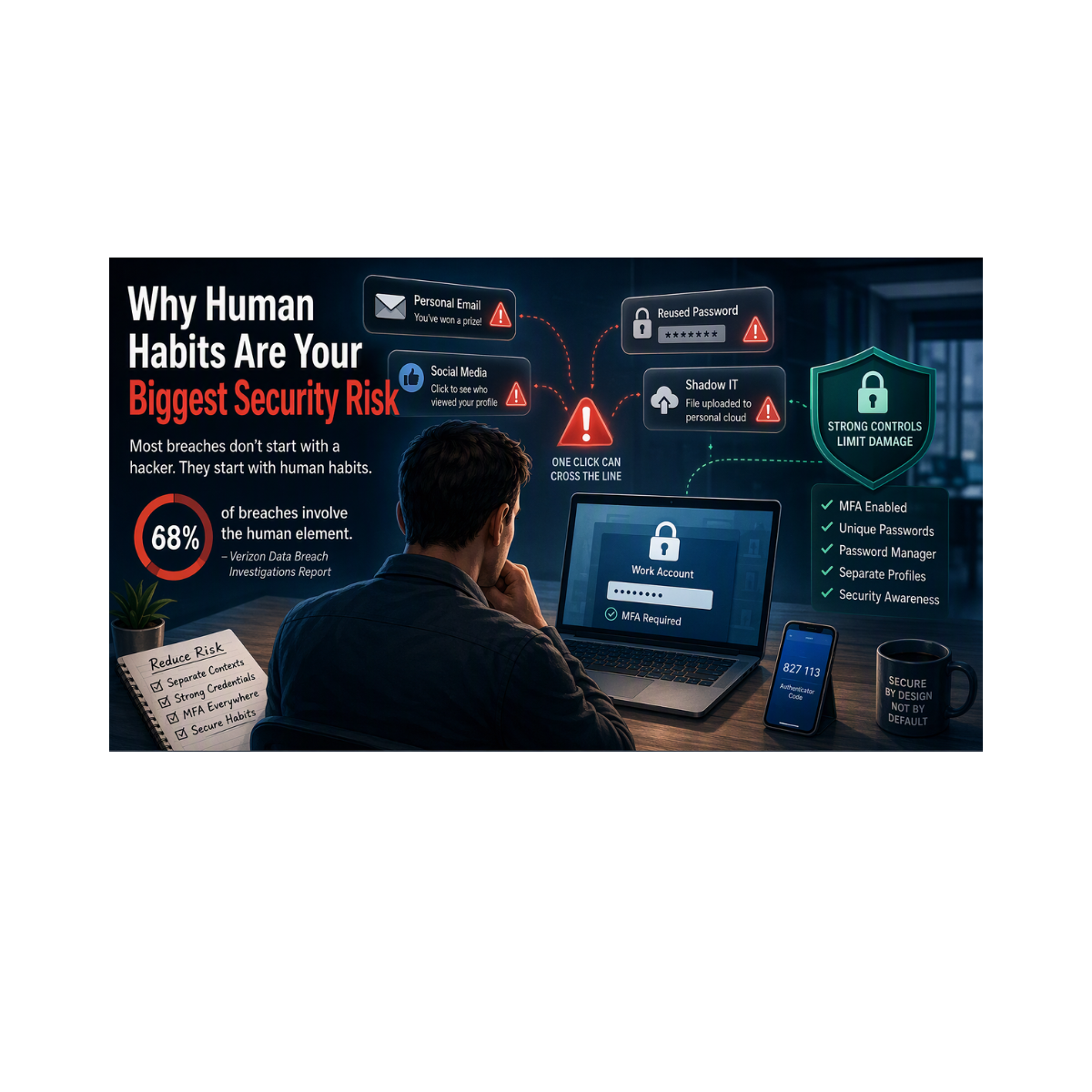
Technical controls reduce risk, but employees still make decisions every day about links, attachments, password prompts, payment requests and unusual sign-ins. Security awareness training helps staff recognise suspicious activity and report it quickly.
The UK’s National Cyber Security Centre Small Business Guide recommends practical steps around passwords, phishing, device protection and backups. Make those behaviours part of routine training rather than relying on a single annual session.
- Run regular phishing simulations.
- Provide short, frequent security reminders.
- Teach staff to verify payment-detail changes separately from email.
- Make suspicious-email reporting simple.
- Include security in new-starter onboarding.
For structured employee training, see ESP Projects’ user awareness training.
9. Review Access, Licences and Security Quarterly
Microsoft 365 security changes as your business changes. New employees join, staff leave, suppliers gain access and licences are upgraded or downgraded. A configuration that was appropriate six months ago may no longer match your risks.
Schedule a quarterly review covering administrator roles, inactive users, guest accounts, authentication methods, device compliance, forwarding rules, Secure Score recommendations, backup tests and Microsoft 365 licences.
Business Premium is often a stronger fit where an SME needs Conditional Access, Intune, Defender for Business and Defender for Office 365 Plan 1, but the right answer depends on user roles and risk. Do not automatically give every employee the same licence without reviewing what each role actually needs.
Frequently Asked Questions
Does Microsoft 365 Business Premium include antivirus?
Yes. Microsoft 365 Business Premium includes Microsoft Defender for Business, which provides endpoint protection and endpoint detection and response for supported devices. The important point is to configure and deploy it properly rather than assuming the licence alone protects every endpoint.
Is MFA included with Microsoft 365?
Microsoft 365 business plans include security defaults for baseline MFA. Business Premium additionally includes Microsoft Entra ID Plan 1, enabling Conditional Access for more granular access policies.
Do small businesses need Microsoft 365 backup?
If Microsoft 365 contains business-critical email or files, you should define a recovery strategy. This may use Microsoft 365 Backup, a reputable third-party service or another appropriate solution. The key requirement is that recovery meets your business needs and is tested regularly.
How often should Microsoft 365 security be reviewed?
Quarterly is a sensible baseline for most SMEs, with additional reviews after major staff changes, migrations, licence changes or security incidents.
Microsoft 365 Security: Your Five-Step Action Plan
If you need to improve security quickly, start here:
- Confirm MFA is enforced for administrators and users.
- Review Secure Score and assign the highest-priority actions.
- Protect endpoints with supported devices, Intune and Defender where licensed.
- Secure email with SPF, DKIM, DMARC and appropriate anti-phishing controls.
- Test your backup and recovery process rather than assuming it works.
Those five actions will not eliminate every cyber risk, but they address several of the most important Microsoft 365 security weaknesses found in small-business environments.
Review Your Microsoft 365 Security With ESP Projects
Microsoft 365 can provide strong security controls, but only when the right licences, settings and processes are in place. ESP Projects can review your Microsoft 365 environment, identify gaps and help you improve identity security, device management, email protection, backup and staff awareness.
Book a consultation with ESP Projects to review your Microsoft 365 security and prioritise the changes that will make the biggest difference to your business.